
Adding Custom Fields in Sage Intacct
You are starting the conversion of your Sage 300, Timberline, data to Sage Intacct and you want to store the Sage 300 Customer Number within Sage Intacct so you can search by the old customer number. That is really easy to do within Sage Intacct.
Step 1:
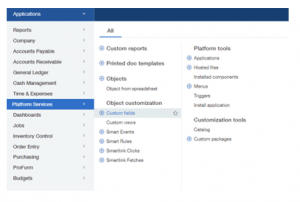
First, go into Platform Services and Select Custom Fields. If you do not have Platform Services available, check your security permissions. If not already subscribed, contact your Sage Intacct Business Partner to add Platform Services to your subscription.
Step 2:
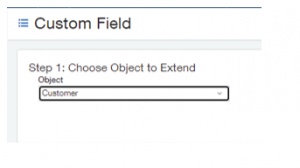
First, press the Add button and then go through the Custom Field Wizard. Next, choose the Object you are extending as the first step. In this case, select “Customer”
Step 3:
Choose the Data Type. In this case, we are going to select “Text” but
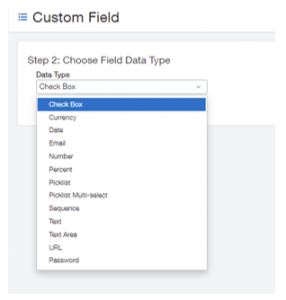
Different Options Available
TIP: Choose the correct value carefully because you cannot change the field type after creating the field.
Field Data Type |
Description |
|
A checkbox provides a single checkbox that reports a value of true for checked and false for unchecked. If you have simple true false flags you want to add to an object, such as whether an account is active or not, a checkbox can be a quick and easy way to capture this information. |
|
Currency is handled differently than numbers and needs to be stored as such to take advantage of multi-currency applications, currency rounding, and currency symbols in reports. |
|
When setting up the field, the date can either be entered manually or set to auto-fill with the current date. Additionally, date fields should follow a standard input format of MM/DD/YY. Therefore, it may be helpful to include this information in the description for your custom field. |
|
|
Email addresses follow a standard format of name@domain.com. Fields for email input validate that users enter the proper format. |
|
Numbers are handled differently than other strings in that they are used for computations. If you plan to use the numeric data in this field for a mathematical equation, set it as a number data type. |
|
Percents are essentially numbers that are input and displayed with the decimal moved two places to the right. If the user is working with percentages, giving them an input field set up as a percentage can save time and confusion. |
|
A picklist is a great way to maintain a consistent set of variables within your data, as well as a time saver for the person entering the data. Consider using a picklist any time you want the input limited to a defined set of options. |
|
Sometimes you want to select multiple options from a list. In these cases, you should set the field to be a Pick List Multi-Select. Users can use the shift key + click to select consecutive values or the control key + click to select non-consecutive values. |
|
A sequence field will auto-fill with the next value in a series, such as inserting an invoice number one number higher than the last invoice number. |
|
When you need to create a field for a short string of text or for a number that you don’t want to be treated as a number, use the text data type. |
|
Occasionally you need a long string of text, such as a notes field or a description of services. The text area data type provides you with a multi-line field to input long strings of text. |
|
A URL has a unique format and properties. By identifying a field as a URL, the Intacct ERP is able to treat the data as a link as well as validate the format. |
|
A password has the unique property of not showing up while it’s being entered. Instead of characters, an onlooker only sees bullets, thus protecting the secrecy of the password. |
Step 4:
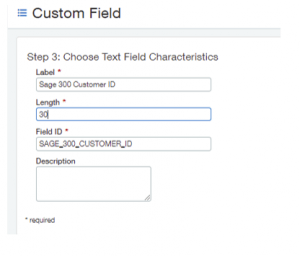
First, enter the Label and Length of the text field. Then, depending on the field type you choose, different options will appear on this screen.
Step 5:
At this stage, you can make the field required and determine which tab it will appear on.
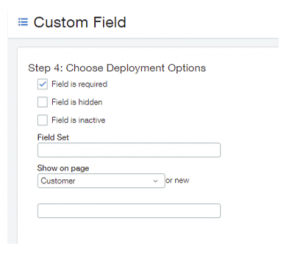
TIP: If you have many custom fields, create a tab to organize all custom fields in one place.
Step 6:
Now you can check out your new field on the screen.
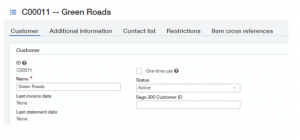
Step 7:
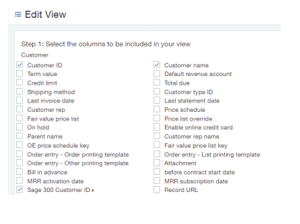
Lastly, Add the new custom field to your list views. To learn more about List Views, please check out our List View Blog HERE>>
Feel free to contact us for more information HERE >>
