Throughout implementation and beyond, when users are working with Sage Intacct one of the most common tasks will be to import data from different files. The most important thing with these files is how they are imported and, most noteworthy, resolving any errors.
How to Import Data
The first step to importing data into Sage Intacct is downloading the relevant Import Template. Users can access these files in one of two ways. Often, they will be found conveniently located within the module they are related to when the users click the Import button on the top right of the screen. This, however, is not consistent throughout the system.
The second method is to go to the Company Setup Checklist. This can be accessed Through Company > Setup > Import data.
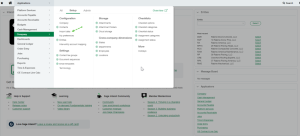
Once here, users will have access to several important functions, but the most common one will be accessing and uploading import templates. From here the user can import data into the system with the accurate template into the appropriate area within the environment without jumping through the system.
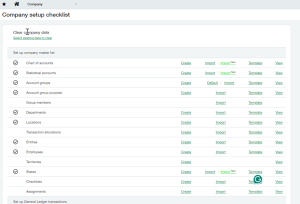
- Trick: Since this is a consolidated list of all files and areas that can receive imports, it is helpful to use the Ctrl-F function to find the area you are looking for faster
Download the Template
The next step will be for the Sage Intacct user to download the template. To do this, Select the green highlighted link Template.
- Tip: Templates are downloaded blank but it is often a good idea to fill the first few rows in with example data to use for future imports so you can quickly see what format previous imports took. Just be sure to save with the # symbol in the “do not import” column or to remove these rows before importing. This way you can share your templates internally with built in examples to make it easier when someone else needs to go to import.
- Tip: While keeping example templates is a good idea and common practice, Sage will often update the default templates. This will also affect any imports and may cause importing using older templates to error out. Be aware of this when using older templates as the error message that this kind of error displays may not be obvious that the error is due to an update in the templates.
Complete Fields
After you have downloaded the template you want, you then need to fill out all the required fields in the template. The descriptions will tell you if a field is required or not.
- Trick: Quickly identify which fields are required by using CTRL f, type in “REQUIRED”, and highlight all the required fields.
Once the file is filled out, users can import it through the same page where the template was downloaded. When importing, remember that the file must be in CSV format.
Resolving Errors
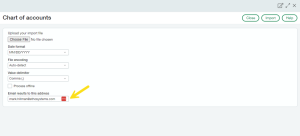
When importing an import template, you will likely come across import errors. If you do get an import error, there are two places where the errors are highlighted. First, in the pop-up window with the error code. This code is often not helpful. The second and far more helpful place you will get details on your error is in your email. Sage Intacct will send an email to the email address listed when importing the file so it is critical you make sure this email is accurate.
- Tip: When resolving errors in Sage it can feel like you resolve one error only to create another. It is common to resolve an error, import again, and receive a completely different error. This is frustrating but requires an understanding of how Sage Intacct populates errors. Very rarely will it give you all the errors in a single error report. Sage imports line by line. When an error is identified, it sends the error code. This means you may have to make several import attempts before it imports successfully. You know you are making progress when, after each import, you get a different error message.
- Trick: When you get an error, and Sage was able to successfully import several of the lines but not others, the error notification that pops up will give you the option to download the error file. This file will be your ready-to-import template, but only with the lines that have errors. While this is a preference, you can use this file for your next import attempt and keep going and watch as the file gets smaller and more manageable.
Sage Intacct Errors:
There are many different kinds of errors in Intacct, and there are too many to cover in a single document. However, here are some helpful links, including one for common import errors. If after several import attempts, you keep getting the same errors or cannot understand the error you have received please reach out to ETHOSystems.
Common Import Errors:
Prepare your CSV file for import:
Importing Data:
Contact us for more information and a demo of Sage Intacct Construction & Real Estate here >>>