

How to properly remove Users and Employees from Sage Intacct

Properly Removing Users
With all the employee changes within each organization, we have seen former employees continue to have access to the most critical information. To make sure your data is protected, please follow these steps when an employee leaves.
- In User Information, set the Status to “Inactive”. Note, this should be done before setting up a new employee to prevent exceeding your user licenses. This also needs to be done in any Sandbox or Implementation environments created.
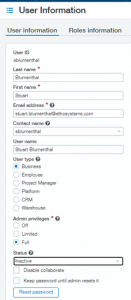
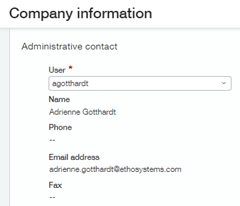
Remove Administrative Contact
- Under Company Information, if they were the Administrative Contact, make sure to change that to a different user
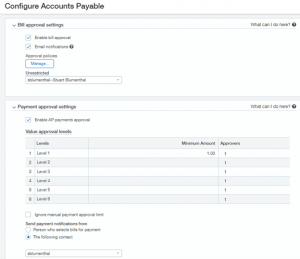
Update Bill Approval Settings
- In Accounts Payable Configuration, make sure to update the Bill Approval Settings by reviewing the Approval Policies and the Unrestricted User. Also, review the Payment Approval Settings and the person setup for “Send payment notifications from”
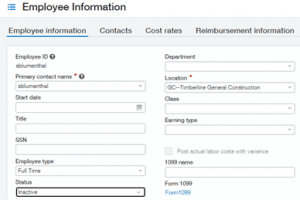
Change Employee Status to Inactive
- Make sure that all Timesheets and Expenses have been posted and then change the status of the Employee to Inactive. Also, update all other employee records where the user was the Manager.
Update User as Manager
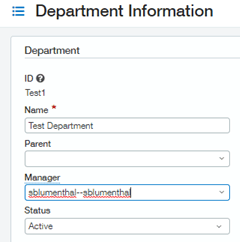
- In Company -> Department Information, update all records where the user was the Manager.
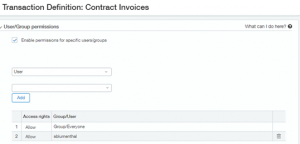
Transaction Definitions
- Review all Transaction Definitions in Inventory, Order Entry, and Purchasing and make sure if the transaction definition was set up for that one user, it is adjusted. NOTE: try to avoid setting permissions to specific users, instead set them to a group.
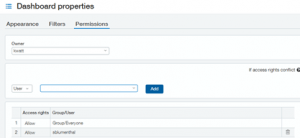
Owner Permissions
- Review the Owner and permissions for each Dashboard in the system. Going forward, do not assign permissions to Dashboards for a user, use Group Assignments instead.
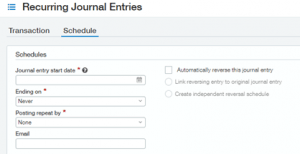
Update Email Address
- Under Recurring Journal Entries, make sure the email address for existing entries is updated.
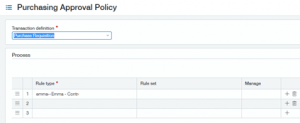
Purchasing Approval Policies
- Review all Purchasing Approval Policies to make sure the user is not listed in there
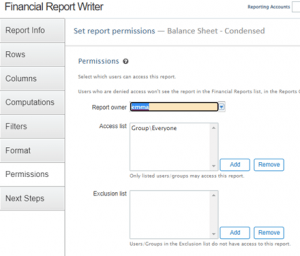
Report Owner and Permissions
- Review the Report Owner and Permissions for each Financial Report. Also, if the report is scheduled to be sent out, review who it is being sent to.
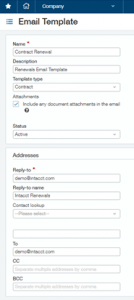
Email Templates
- Review all Email Templates in Company Setup to make sure the email addresses are correct for the Reply-to and the delivery addresses.
If you have any questions or would like ETHOSystems to do a Security Review for your organization, please contact us!
