

Working Smarter in Sage Intacct
We spend so much time in Sage Intacct every day so it’s important to make sure you are fully using all the functions of the software and working efficiently within the product. ETHOSystems has put together a video with some tips for our clients HERE >>,
In the meantime, find out about some of the top Tips and Tricks for Sage Intacct below.
Set Your Preferences
Most end users don’t realize all the features within the Preferences Screen within Sage Intacct. To Access your preferences, click on your name in the upper right-hand corner and click My Preferences.

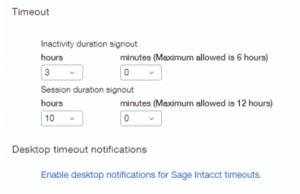
Set Signout Hours Duration
If you find that you are getting logged out of the system too fast or you want the system to log you out when automatically, set the Signout Hours Duration. You can also have Sage Intacct work with your Windows Desktop Notifications and warn you about timeouts there.
Set Start Page
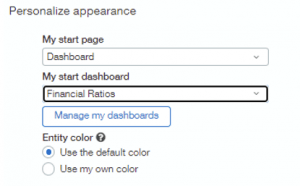
Many end users also forget to set up their home page when they log in. Set your Start Page for a specific module or Dashboard.
- Inactivity duration: Set the amount of time your company can remain inactive before it signs you out. There is a maximum amount of hours you can choose which has been set on the Company information page.
- Session duration: Set the total amount of time you can work in your company, regardless of whether it’s active or not, before it signs you out. There is a maximum amount of hours you can choose which has been set on the Company information page.
Make Sure Correct Entity
You can also override the Entity Color to make sure you are in the right entity.
Set Module Order
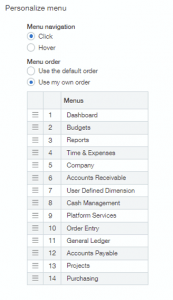
Set the order of the modules. So if there are modules you commonly want to go into, you can set those to the top of the list or group the modules together as you like.
Personalize Page Defaults
If you want more records returned on your List Screens or more Transactions Rows per page, you can increase those setting under the Personalize Page Defaults section.
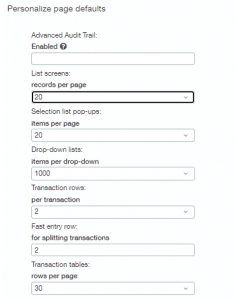
- List pages: The number of lines to display in pages that provide lists of records.
- Selection list pop-ups:The number of lines to display in pop-up selection pages in the event that there are more items than the drop-down list displays.
- Transaction rows: The number of rows displayed when adding a new transaction. If you set the default to 2 rows in adding a new expense report, Intacct displays two empty rows on the page.
- Fast-entry row: Controls the number of blank lines used for splitting the transaction across two or more account-department-location combinations (applies to fast-entry bills, checks, and invoices pages).
- Transaction tables: The number of transaction rows you can view before you page to view the next set of rows.
Personalize Interactive Behavior
One of the last sections to make your workflow easier is the Personalize Interactive Behavior section
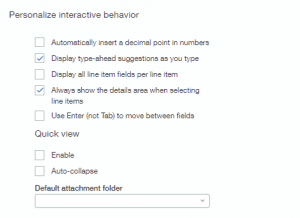
Enable Type Ahead – Select if you want the system to anticipate and display suggestions as you type. The type-ahead feature anticipates what you will type next by displaying the word it thinks you will type, so you don’t have to type the entire word.
These are setting you can always turn on and turn off to see how they work with your system.
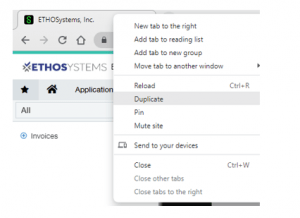
Duplicate your Intacct Tabs in your browser
Don’t be afraid to have multiple Sage Intacct tabs open at once. To open another Sage Intacct tab, right-click on your tab and select “Duplicate”. Now you can have multiple Sage Intacct Screens open at once.
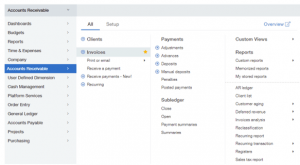
Star your Favorite Menu Items
Always mark the items you go into a lot by clicking the Star to the right of the menu option.
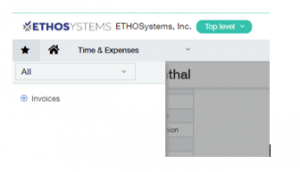
Then you can always click on the Star next to the home icon to see your favorite menu items.
We hope that you have picked up a trick or two to make your Sage Intacct experience better. If you have any questions regarding Sage Intacct Construction, please contact us here at ETHOSystems!
