

Sage Intacct Construction List Views Tips and Tricks
List Views within Sage Intacct are extremely powerful since they can help you easily filter and report data. Most people don’t think of the list for reporting, but with the ability to add columns and filters, it becomes an easy way to get the data that you are looking for. ETHOSystems has created a video on how to work with List Views here https://www.youtube.com/watch?v=ym03cgQv6aQ. However, we are going to give you the top Tips and Tricks to working with List Views within Sage Intacct.
Tip 1:
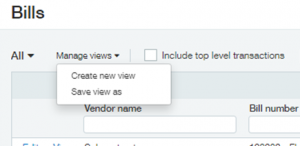
When working with Multiple Entities, you might want to select “Include Private”. When you are at the Top Level and you click on “Include Private”, it will show the entries for the other entities. When you are in the Sub Entity, you can click “Include Top Level Transactions” to include the transactions from the top level as well.

Tip 2:
When Creating New Views, use the “Save View As” option first. This way, instead of creating a new view from scratch, you can modify the existing view and add or remove the columns you don’t need.
Tip 3:
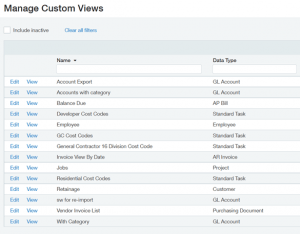
To remove a Custom View, go to Customization Services or Platform Services (depending upon which is provisioned in your system). Click on Custom View and delete the view within in there. This is the most asked question from clients!
Tip 4:
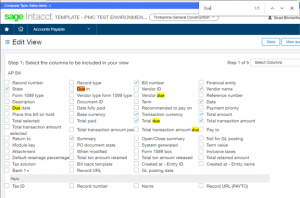
When there are a lot of fields, use the Browser Search Function (Ctrl+F) to find the field you are looking for. The Browser Search Function allows you to find information quickly on the screen and is underutilized by most clients.
If you have any questions about Sage Intacct or creating List Views, please contact us here at ETHOSystems!
